subject: Office 365 Tenant-to-Tenant Migration Guide (2026): Manual vs Automatic [print this page]
Introduction Office 365 Tenant-to-Tenant Migration is the process of moving users, mailboxes, data, and service configurations from one Microsoft 365 (formerly Office 365) tenant to another. This task commonly appears during mergers, acquisitions, divestitures, reorganizations, or when companies consolidate Microsoft 365 estates for cost, compliance, or operational reasons. The guide below explains why organizations pursue Office 365 Tenant-to-Tenant Migration, the major technical considerations, and two practical methods—manual and automatic—for performing a migration safely in 2026.
Why perform a tenant-to-tenant migration Organizations perform Office 365 Tenant-to-Tenant Migration for several practical reasons: to consolidate licensing and reduce costs after an acquisition, to separate business units during a divestiture, to centralize security and compliance policies, or to retire legacy tenants and simplify administration. Consolidation reduces duplicate subscriptions and provides a single identity and governance model, which simplifies monitoring, compliance reporting, and data-loss prevention. Tenant-to-tenant moves are also used when changing email domains or bringing external contractors or subsidiaries onto a single corporate tenant for smoother collaboration and policy enforcement.
High-level challenges and planning priorities Tenant-to-tenant projects are not simply “copy and paste”; they require careful planning across identity, mail routing, data integrity, and user experience. Key challenges include mapping user identities and UPNs, transferring verified domains, preserving mailbox permissions and calendar free/busy, migrating SharePoint and OneDrive content with permissions, moving Teams data (channels, chats, and memberships), and ensuring minimal downtime for critical services. Planning priorities should include an identity strategy (whether to keep UPNs or reassign them), coexistence design (mail flow and calendar sharing during migration), licensing procurement in the target tenant, and a rollback/validation plan for each workload.
Core components to migrate
Exchange Online (mailboxes and mail flow): preserve mail, folders, calendar items, delegates, and shared mailboxes. Mail routing and MX records often require staged changes.
OneDrive for Business: user personal files and sharing links; retaining file permissions and version history is important.
SharePoint Online: sites, document libraries, lists, and site permissions; complex site customizations and hub associations must be addressed.
Microsoft Teams: teams, channels, membership, and some artifacts like posts, chat history, and files (files are stored in SharePoint). Teams migration is dependent on Exchange and SharePoint sequencing.
Azure AD identities: user objects, groups, and app registrations; decisions about syncing or re-creating identities must be made.
Security and Compliance settings: retention labels, DLP policies, eDiscovery, and audit configurations should be reconciled in the target tenant.
Two recommended methods for Office 365 Tenant-to-Tenant Migration You can migrate tenants manually (native, step-by-step) or automatically using a third-party migration product; both have trade-offs. Below are the two methods IT teams commonly choose.
Method 1 — Manual migration (native & scripted) Manual migration uses a combination of Microsoft-provided tools, admin portals, and PowerShell scripts to move users and data. This approach is low-cost in licensing but high-effort and risk for large or complex environments.
Steps (high-level)
Inventory & plan: catalog mailboxes, OneDrive sizes, SharePoint sites, Teams instances, and app integrations.
Prepare identity: decide mapping strategy, create target user accounts or set up cross-tenant synchronization, and verify domains in the target tenant.
Mail coexistence: configure mail routing (connector rules, MX timing), and prepare mail-forwarding or routing policies to ensure no mail is lost.
Exchange migration: use cross-tenant mailbox migration features and PowerShell to migrate mailbox data in batches; preserve mailbox permissions and shared mailboxes.
OneDrive & SharePoint: use SharePoint migration tools (SharePoint Migration Tool or native APIs) and scripted approaches to move site content and permissions.
Teams: export and re-create Teams and channels; move files via SharePoint migration; recreate owner/membership and reconfigure apps and tabs.
Validation & cutover: update DNS records and MX, run validation checks, and communicate changes to users.
Post-migration cleanup: reapply security policies, reconfigure conditional access, and ensure backups and retention labels are correct.
Pros and cons
Pros: minimal third-party licensing; full control of each step.
Cons: time-consuming, error-prone at scale, and requires deep script automation and coordination between workloads.
Method 2 — Automatic migration (third-party tools) Automatic migration uses specialized migration tools that orchestrate and automate tenant-to-tenant conversions across multiple workloads. These tools reduce manual effort, preserve metadata, and handle complex mappings and coexistence scenarios more reliably.
What these tools do
Cross-tenant identity mapping: automatically map source users to target accounts and handle UPN/domain changes.
Mailbox migration orchestration: bulk migration of mailboxes with incremental syncs to minimize downtime and preserve permissions and delegates.
SharePoint/OneDrive replication: transfer site structures, files, versions, and permissions with reporting.
Teams-aware migration: migrate teams, channels, membership, and associated files while maintaining relationships between workloads.
Coexistence and cutover automation: manage mail routing, MX changes, and cutover windows with built-in checks and reporting.
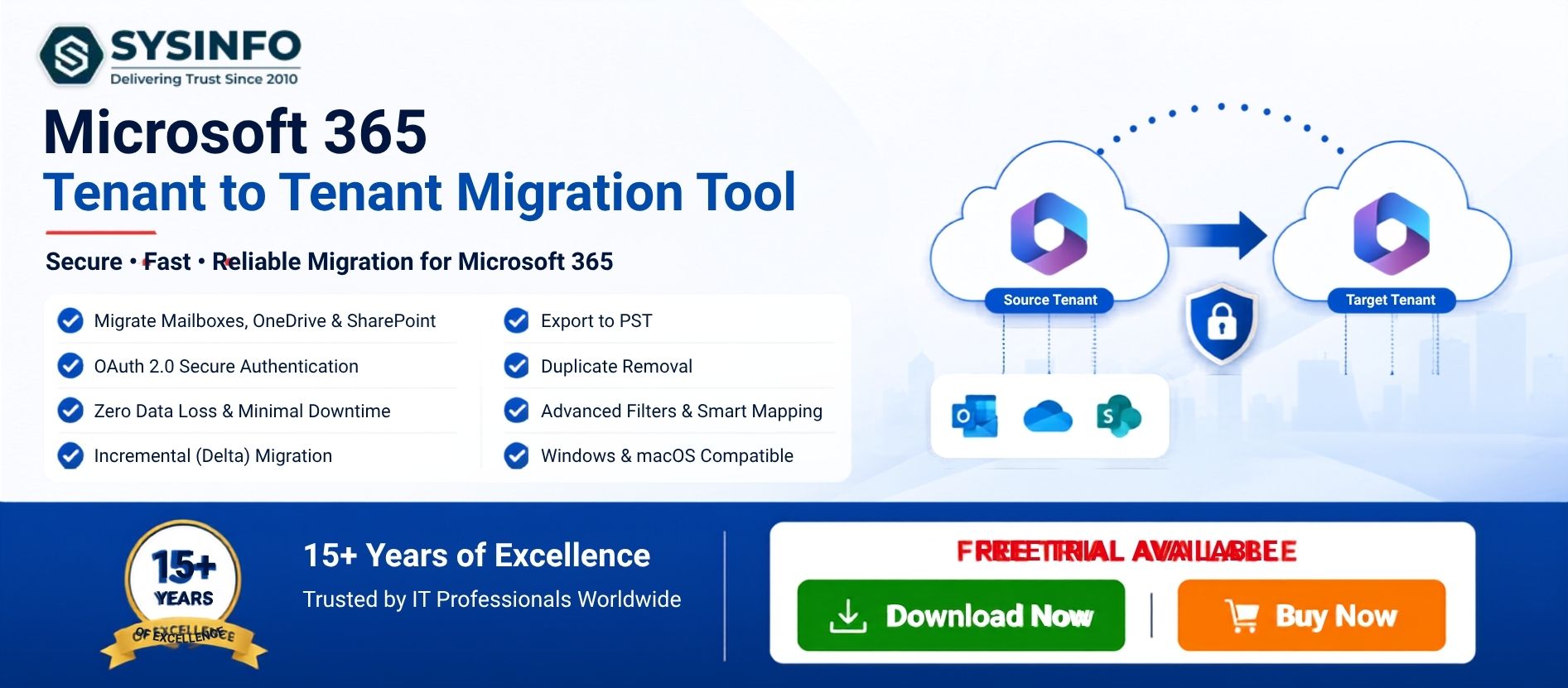
Example tool (professional mention) SysInfo Microsoft 365 Tenant to Tenant Migration Tool is a professional product positioned to simplify cross-tenant moves by offering unified handling of Exchange, OneDrive, SharePoint, and Teams migrations. It provides identity mapping interfaces, progress reporting, and incremental syncs to reduce user downtime during cutover windows.
Pros and cons
Pros: faster at scale, reduces admin overhead, better metadata preservation, built-in reporting, and fewer migration errors.
Cons: requires third-party licensing, possible learning curve, and vendor dependence for advanced support.
Best practices and sequencing
Migrate Exchange early or in parallel with Teams: Teams relies on Exchange for mail and calendar references, so mailbox migration should be planned before or alongside Teams migration.
Use incremental syncs and staged cutovers: run initial bulk copy, then incremental delta syncs to reduce final cutover downtime.
Preserve permissions and sharing: validate site and file permissions after migration; broken links or external shares are common post-migration issues.
Test with pilot users: run pilot batches that include all workload types to validate your sequence and scripts or tool settings.
Communicate clearly: provide users with timelines, expected downtime, login changes, and FAQs. Good communication reduces helpdesk load.
Validate compliance: audit labels, eDiscovery cases, and retention policies before decommissioning the source tenant.
Security, compliance, and licenses Confirm that the target tenant has adequate licenses for all users and that security baselines (conditional access, multifactor auth, and DLP) are aligned prior to migration. Review and transfer or recreate app registrations, service principals, and conditional access policies. Keep a compliance checklist for retention policies and legal holds to avoid accidental data loss.
Closing summary Office 365 Tenant-to-Tenant Migration is a strategic activity that requires careful planning across identity, mail, collaboration, and compliance domains. For small, simple projects a manual approach using native tools and scripts can work, but for larger or more complex migrations the automatic approach using specialized software—such as the SysInfo Microsoft 365 Tenant to Tenant Migration Tool or other cross-tenant migration platforms—reduces risk, preserves metadata, and shortens cutover windows. Whether you choose manual or automated migration, prioritize identity mapping, mail coexistence, staged syncs, and thorough validation to ensure a smooth transition.
Would you like a migration checklist tailored to your tenant size and workloads, or a comparison table showing feature differences between manual and tool-based approaches?