subject: How to Delete Duplicate Meetings in Outlook Without Cancelling? [print this page]
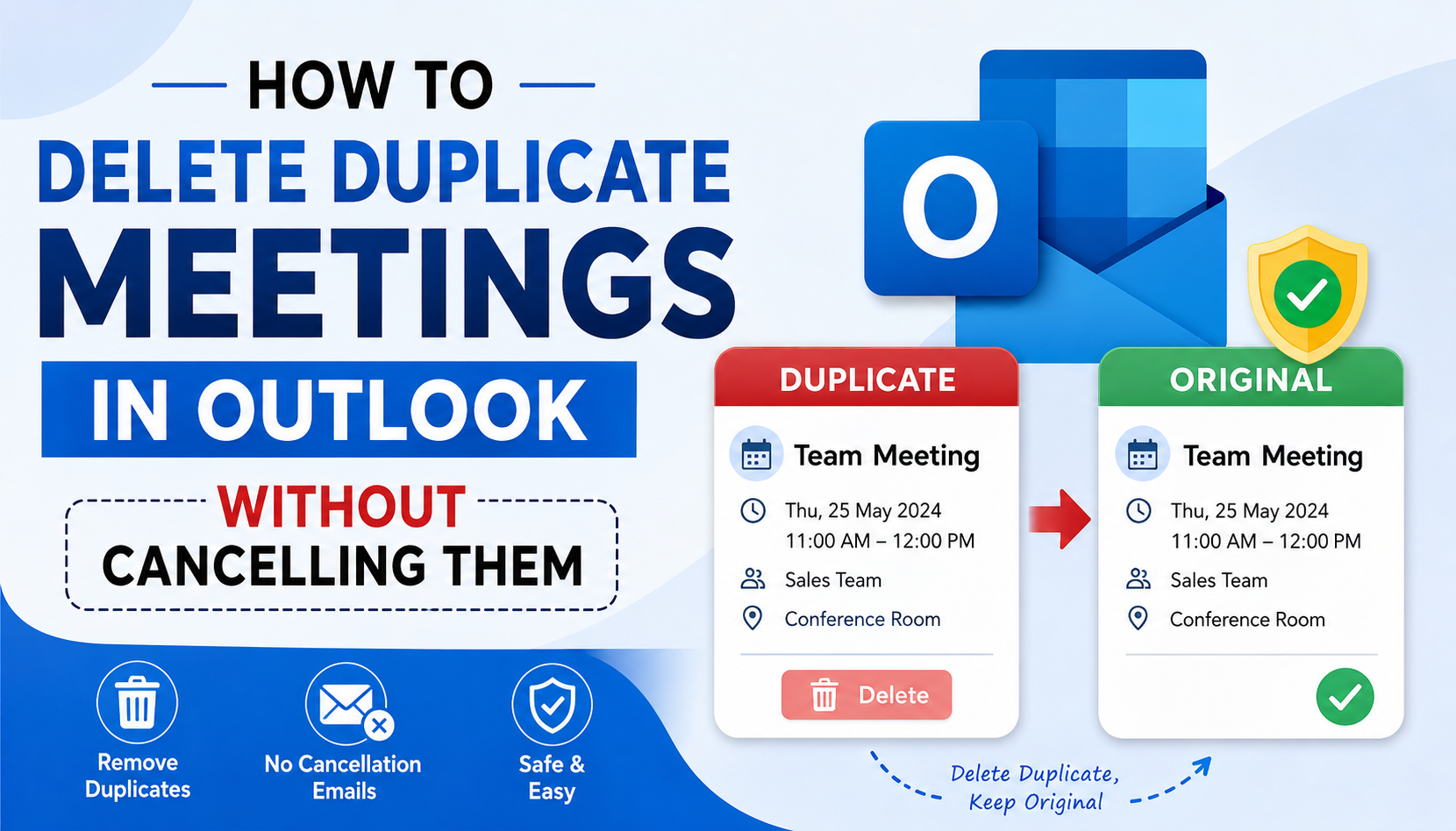
Duplicate meetings in Microsoft Outlook can make your calendar confusing and lead to missed appointments. They often appear after syncing multiple devices, importing PST files, restoring backups, or connecting Outlook with third-party calendar applications. While removing duplicate meetings is necessary, many users worry that deleting them will send cancellation emails to attendees. The good news is that deleting a duplicate meeting is different from cancelling the original meeting. If done correctly, you can remove duplicate calendar entries without notifying participants or affecting the actual meeting. In this guide, you'll learn why duplicate meetings occur, how to delete duplicate meetings in Outlook without cancelling them, and how to prevent the issue from happening again. Why Do Duplicate Meetings Appear in Outlook? Understanding the reason behind duplicate meetings can help you avoid them in the future. Some common causes include: 1. Multiple Calendar Synchronization If your Outlook calendar syncs with Microsoft 365, Exchange Server, Google Calendar, iCloud, or mobile devices, synchronization conflicts can create duplicate meeting entries. 2. Importing PST Files More Than Once Importing the same Outlook PST file multiple times often results in duplicate appointments, meetings, and calendar events. 3. Outlook Sync Errors Temporary synchronization issues between Outlook and the mail server may duplicate calendar items during updates. 4. Third-Party Add-ins Calendar management tools, synchronization software, and Outlook add-ins may accidentally create duplicate meetings. 5. Mailbox Migration Migrating mailboxes between Exchange servers or Microsoft 365 tenants can sometimes duplicate calendar items if the migration is repeated. Deleting a Meeting vs. Cancelling a Meeting Many Outlook users confuse deleting a meeting with cancelling it, but they are completely different actions. Delete Meeting Cancel Meeting Removes the meeting only from your calendar (or removes the duplicate copy). Cancels the meeting for everyone. Usually does not send cancellation notices when deleting a duplicate copy. Sends cancellation emails to all attendees if you're the organizer. Safe for removing duplicate entries. Should only be used when the meeting is actually cancelled.
If you're the meeting organizer, avoid clicking Cancel Meeting unless you truly want to cancel the event. How to Identify Duplicate Meetings in Outlook Before deleting anything, verify that the meeting is actually duplicated. Compare the following details: Meeting subject Organizer name Meeting attendees Date Start and end time Location Microsoft Teams meeting link (if applicable) Notes or description If every detail matches, one of the entries is most likely a duplicate. Method 1: Delete Duplicate Meetings Manually If you only have a few duplicate meetings, Outlook allows you to remove them manually. Step 1: Open Outlook Calendar Launch Microsoft Outlook and select the Calendar icon. Step 2: Change to List View Viewing appointments as a list makes duplicates much easier to identify. Navigate to: View → Change View → List Now meetings are displayed similarly to emails. Step 3: Sort Calendar Entries Sort the list by: Subject Start Date Organizer Duplicate meetings will appear next to each other. Step 4: Compare Meeting Details Open both meetings and verify that every detail matches. Step 5: Delete Only the Duplicate Entry Select the duplicate meeting and press Delete. Do not select Cancel Meeting if you're the organizer. Advantages Completely free No additional software required Works for a small number of duplicates Limitations Time-consuming Difficult with thousands of calendar items Easy to delete the wrong meeting Not suitable for recurring appointments Method 2: Use Outlook's Clean Up Feature Some users believe Outlook's Clean Up tool removes duplicate meetings. Unfortunately, this is a misconception. The Clean Up feature only removes redundant email messages from mail folders. It does not detect or remove duplicate calendar appointments or meetings. Therefore, this method won't solve duplicate calendar issues. Method 3: Use an Automated Outlook Duplicate Remover If your Outlook calendar contains hundreds or thousands of duplicate meetings, manually removing them becomes impractical. A professional SysTools Outlook Duplicate Items Remover can automatically scan your Outlook profile or PST file and identify duplicate calendar items based on multiple properties. These tools compare: Subject Organizer Meeting time Location Recurrence Attendees Calendar folder Only duplicate entries are removed while the original meetings remain untouched. This approach significantly reduces manual effort and minimizes the risk of deleting important calendar events. Benefits of an Automated Tool Detects duplicate meetings automatically Removes duplicate calendar entries in bulk Preserves original meetings Supports Outlook profiles and PST files Handles large mailboxes efficiently Saves hours of manual work For organizations and users managing large Outlook calendars, a dedicated solution such as SysTools Outlook Duplicate Remover provides a reliable way to remove duplicate meetings, appointments, contacts, emails, tasks, and journal items without affecting the original data. How to Prevent Duplicate Meetings in Outlook Preventing duplicates is much easier than removing them later. Avoid Multiple Imports Before importing a PST file, verify whether its calendar data already exists in Outlook. Check Synchronization Settings Review synchronization settings for Microsoft 365, Exchange, Google Calendar, and mobile devices to ensure only one synchronization path is active. Use One Primary Calendar Managing multiple calendars simultaneously increases the likelihood of duplicate entries. Update Outlook Regularly Install the latest Outlook updates to reduce synchronization issues and improve calendar reliability. Disable Unnecessary Add-ins Some third-party synchronization tools can create duplicate meetings. Disable add-ins you no longer use. Export Backups Before Cleanup Always create a backup of your Outlook PST file before deleting large numbers of calendar items. Common Issues While Removing Duplicate Meetings Duplicate Meetings Reappear This usually indicates an ongoing synchronization conflict. Check connected devices and calendar services. Deleted Meetings Return If another device still contains duplicate entries, synchronization may restore them. Duplicate Recurring Meetings Recurring meetings require additional attention because deleting the wrong occurrence may affect the entire series. Duplicate Microsoft Teams Meetings Teams meetings synchronized through Outlook may duplicate after account migration or synchronization issues. Verify organizer information before deleting them.
Best Practices To safely remove duplicate meetings:
Back up your Outlook data first.
Verify meeting details before deleting.
Review recurring appointments carefully.
Remove duplicates during off-hours if using a shared mailbox.
Use automated software for large Outlook mailboxes.
Keep Outlook synchronized with only trusted calendar sources.
Frequently Asked Questions How do I delete duplicate meetings in Outlook without cancelling them? Open the Calendar, identify the duplicate meeting, and press Delete. Avoid selecting Cancel Meeting, especially if you're the organizer. Will attendees receive a cancellation email? No. Simply deleting a duplicate copy from your calendar does not usually send cancellation notices. Cancellation emails are sent when you use the Cancel Meeting option as the organizer. Can Outlook automatically remove duplicate meetings? No. Outlook does not include a built-in feature specifically designed to remove duplicate calendar meetings. Why do duplicate meetings keep appearing? They are commonly caused by synchronization conflicts, multiple PST imports, mailbox migrations, or third-party calendar synchronization tools. Can recurring meetings become duplicated? Yes. Recurring meetings can also be duplicated, especially after mailbox migrations or synchronization errors. Extra care should be taken before deleting recurring series. What is the fastest way to remove duplicate meetings? For a few duplicate meetings, manual deletion works well. For large Outlook mailboxes or extensive calendars, an automated Outlook duplicate remover offers the quickest and safest solution. Conclusion Duplicate meetings can clutter your Outlook calendar and make it difficult to manage your schedule. Fortunately, deleting duplicate meetings is not the same as cancelling them. By identifying duplicate entries carefully and using the Delete option instead of Cancel Meeting, you can clean up your calendar without sending unnecessary cancellation emails to attendees. For a handful of duplicates, Outlook's manual deletion method is usually sufficient. However, if you're dealing with hundreds or thousands of duplicate meetings after synchronization, PST imports, or mailbox migration, an automated solution like SysTools Outlook Duplicate Remover can quickly identify and remove duplicate calendar entries while preserving the original meetings. This ensures your Outlook calendar remains organized, accurate, and easy to manage.